Prompt Management Help Center & Guides
Guides for saving, organizing, versioning, sharing and running your team's AI prompts. Need more help? Email us

Step 1
Getting started
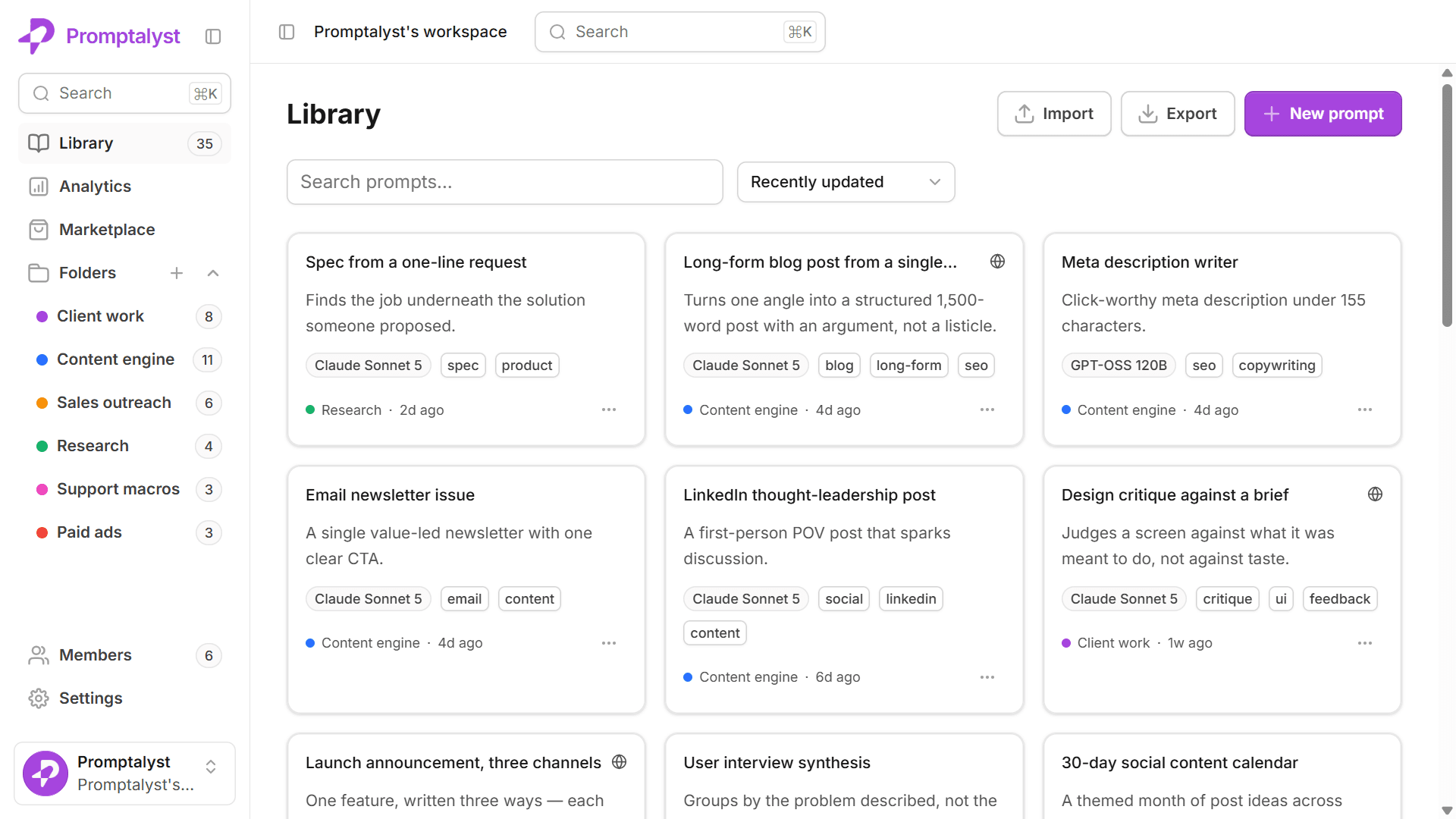
Promptalyst is a private prompt library for teams — the place to save, organise, version, share and run your best AI prompts without losing them in chat history.
Create your account
Sign up with Google, email, or (on the Agency plan) SAML SSO. New accounts land in a short onboarding wizard that sets up your workspace and can seed a starter pack of ready-to-use prompts.
Your first prompt
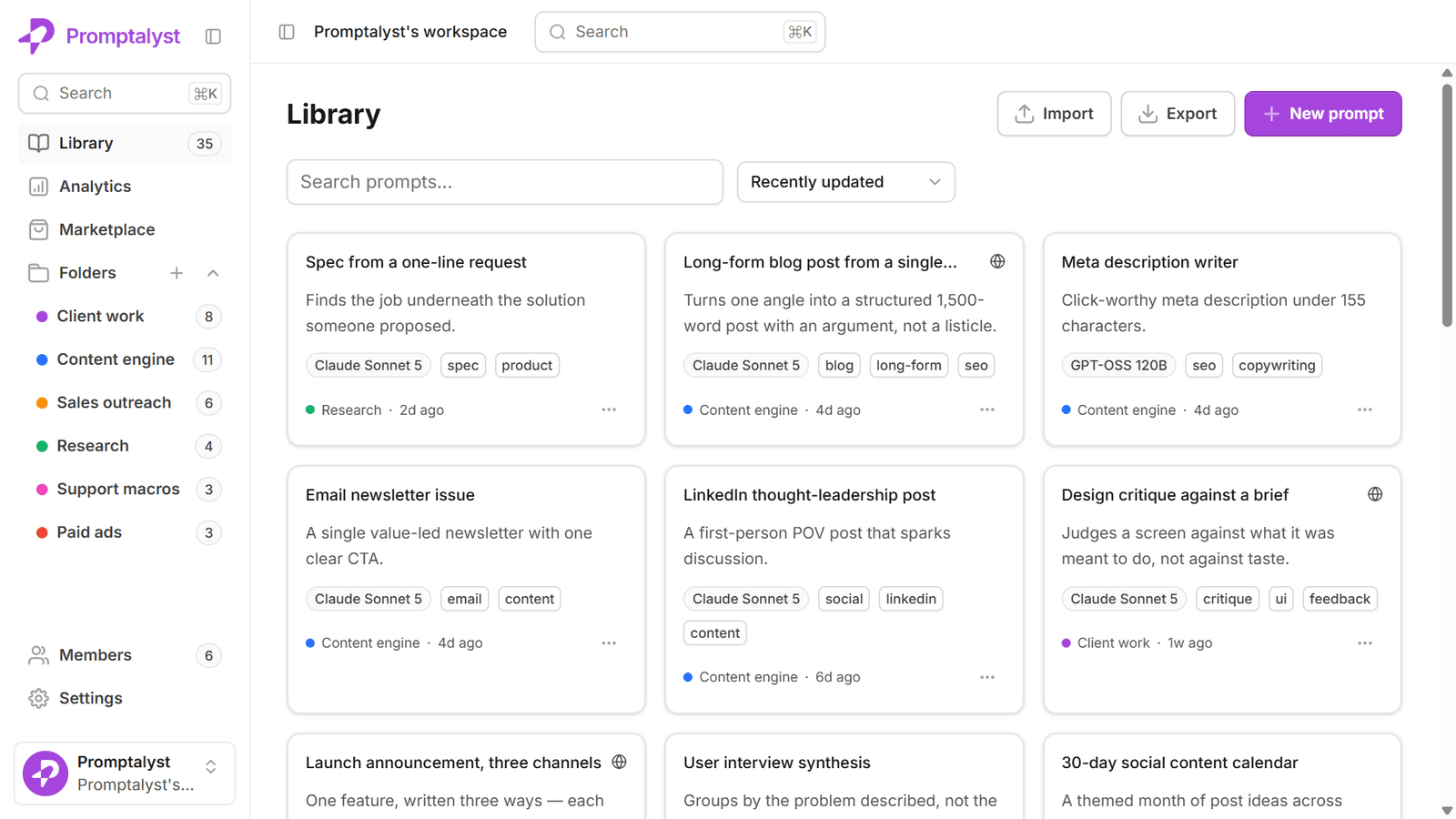
Open Library and choose “New prompt”. Give it a title and a body, pick a model, and save — every prompt is versioned automatically from the first save.
Find anything fast
Use the search box in the sidebar, or press ⌘K / Ctrl+K anywhere to open the command palette and jump to a prompt, folder, or action.
Step 2
Prompts & variables
Prompts are reusable templates. Add variables so the same prompt works for any input, and organise everything with folders and tags.
Variables with {{ }}
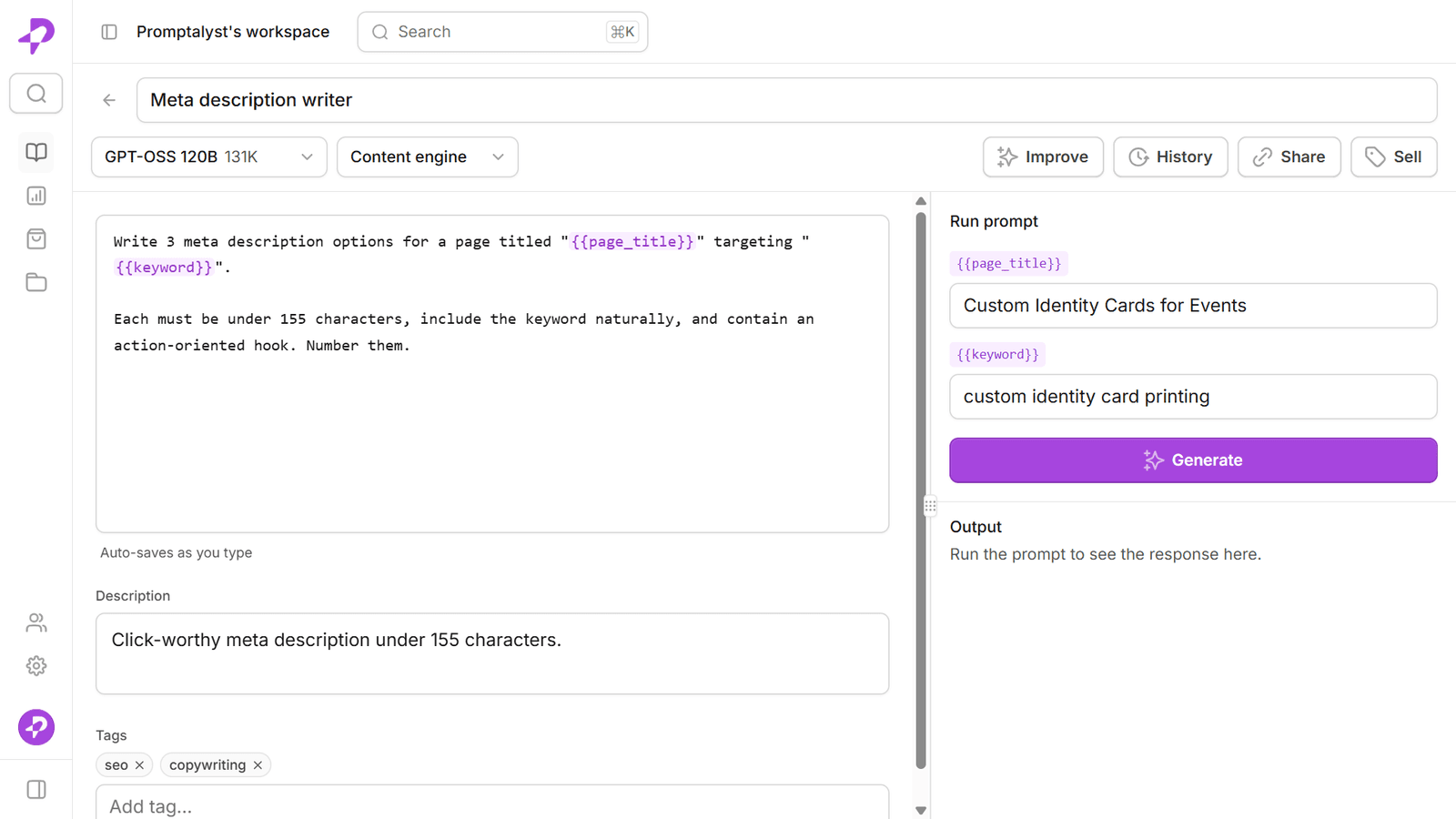
Wrap a placeholder in double braces — e.g. {{brand_name}} or {{product}}. Detected variables show as chips in the editor and become labelled input fields in the run panel, so you fill them in each time you run.
Folders & tags
Group prompts into colour-coded folders and add tags (marketing, captions, ads…). Both are filterable from the library, and tags autocomplete from ones you already use.
Version history
Every time a prompt’s body changes, a version is saved automatically. Open History to compare a version against the current text and restore any earlier one in a click.
Step 3
Running prompts & models
Run any prompt against a real model right inside Promptalyst — bring your own API key and switch models without copying prompts between tools.
The run panel
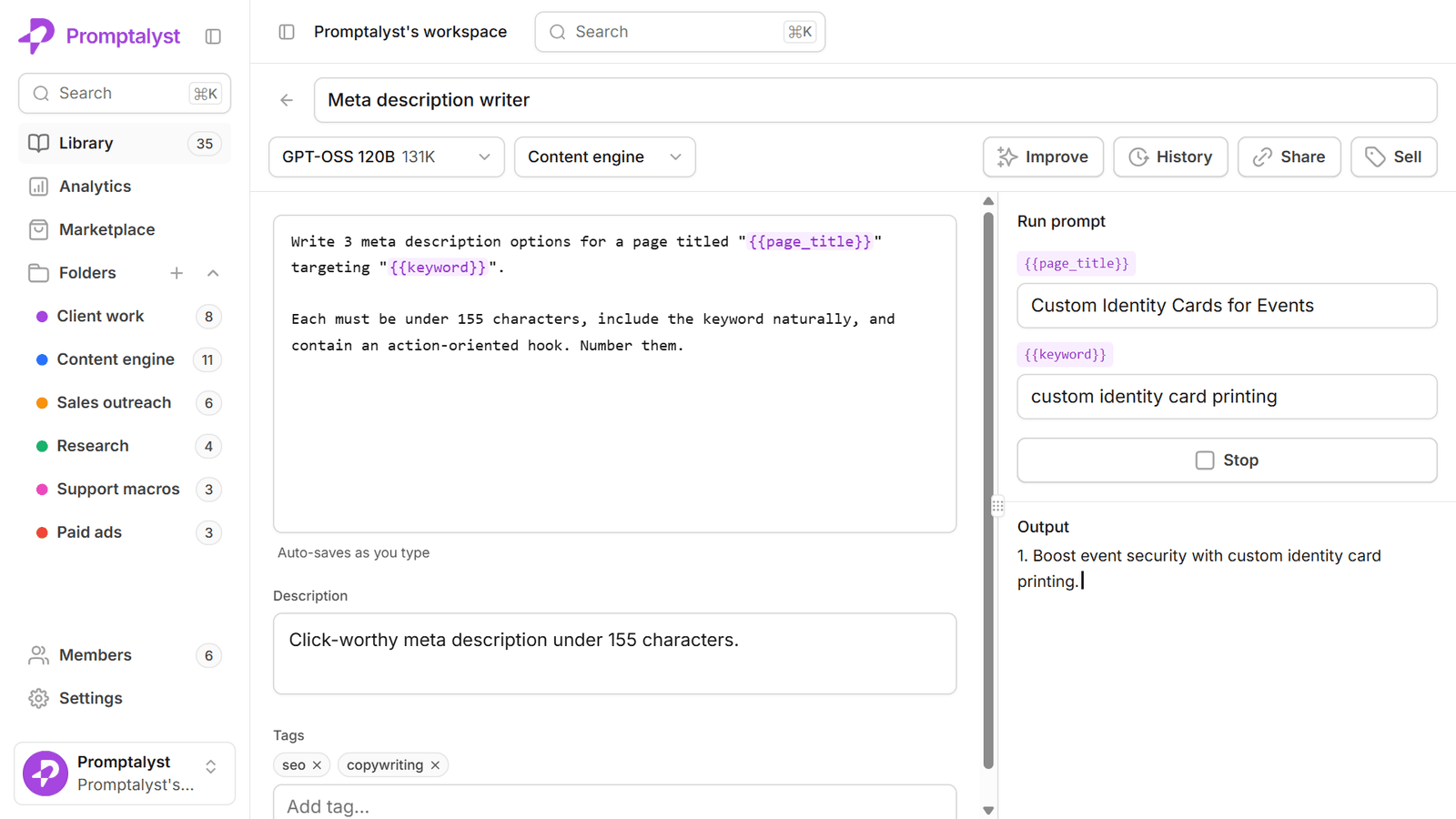
Fill in any variables, then press Generate. The response streams in live; press Stop to cancel. When it finishes, the output becomes an editable workspace — tweak it, copy it, or download it as .md/.txt, and hit Expand for a roomier editor.
Supported models
Claude, GPT-4o, Gemini, Mistral, Groq and xAI (Grok). Pick the model on the prompt; the run uses the API key you’ve added for that provider.
Daily limits
The Free plan includes 5 runs/day; paid plans run unlimited with your own key. If you hit the cap, the Generate button tells you and links to upgrade.
Step 4
API keys (bring your own)
Promptalyst never charges you for tokens — you connect your own provider keys and stay in control of usage.
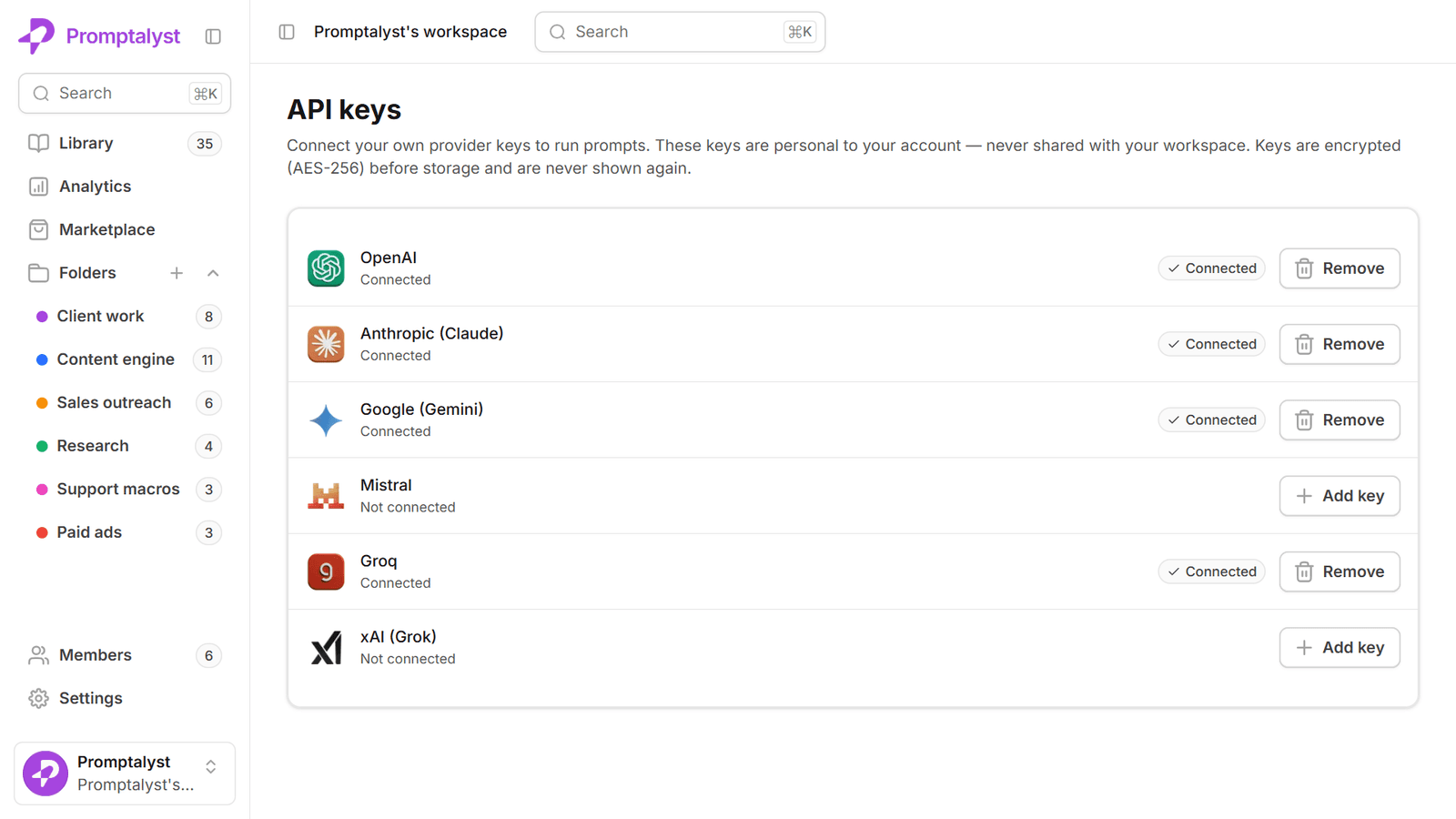
Adding a key
Go to Settings → API keys and add a key per provider (OpenAI, Anthropic, Google, Mistral, Groq, xAI). Each key is validated for the right format before it’s saved.
How keys are stored
Keys are encrypted at rest and used only server-side to make your runs. They are never sent back to the browser and never shown after saving — remove and re-add to rotate.
Step 5
Team & sharing
Invite your team to a shared workspace so everyone runs the latest, approved prompts.
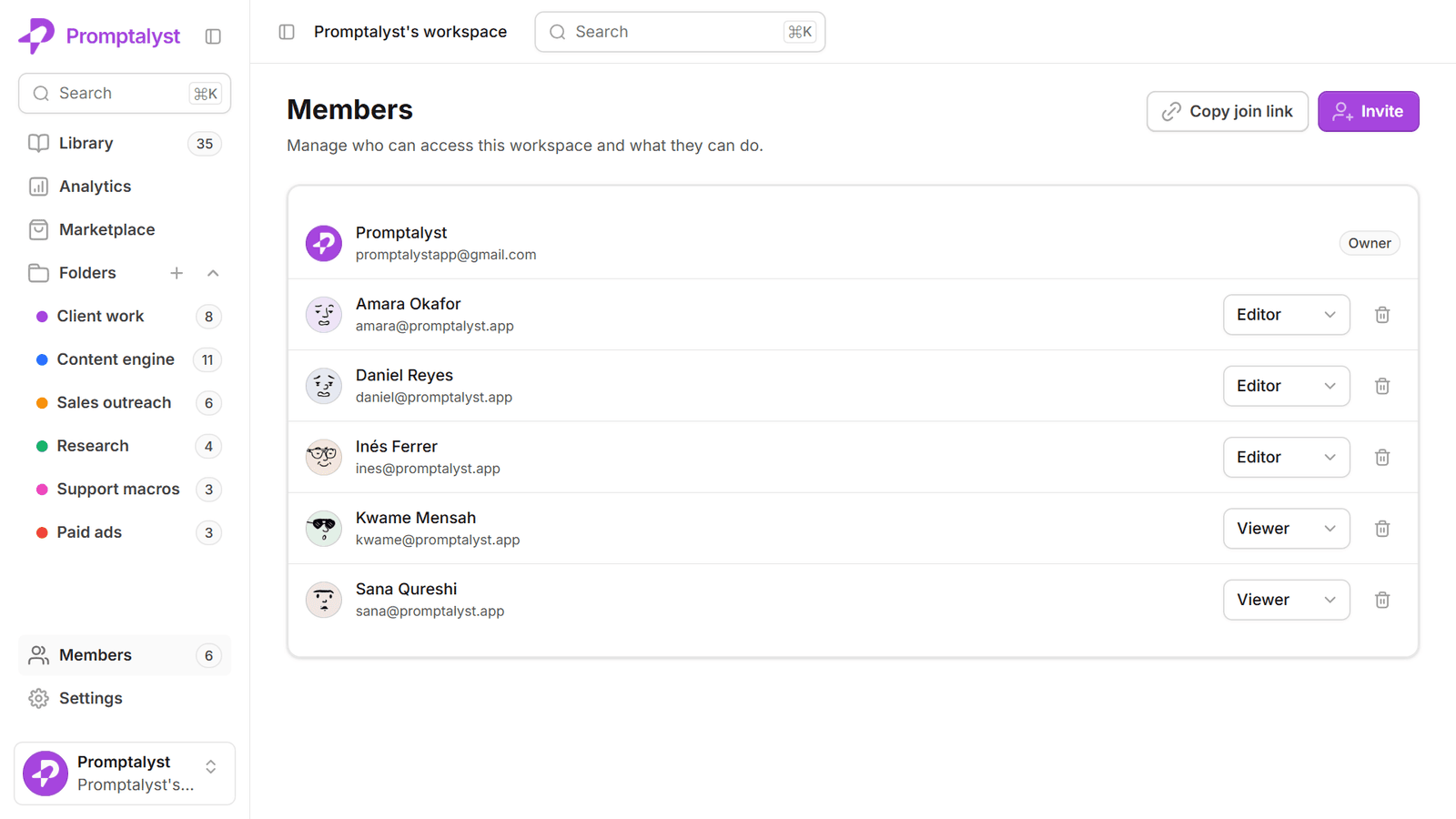
Invite your team
In Settings → Members, invite by email or share a join link. Roles: owner (full control + billing), editor (create/edit prompts and folders), and viewer (read and run only).
Public sharing
On paid plans you can share a read-only link to any prompt, or list it on the marketplace. Visitors can view it and save a copy to their own library.
Step 6
Import & export
Move prompts in and out of Promptalyst without lock-in (paid plans).
Export
Export a folder or your whole library as JSON (full fidelity, including versions) or CSV (a flat spreadsheet of title, body, tags, folder and model).
Import
Drag in a Promptalyst JSON export or a generic CSV with title and body columns. You’ll see a preview — how many will import vs. skip as duplicates — before anything is written.
Step 7
Billing & plans
Start free and upgrade when your team grows. Plans are managed through Paddle.
Plans
Free (20 prompts, 1 member, 5 runs/day), Pro (unlimited prompts, up to 5 members, unlimited runs, sharing + analytics) and Agency (up to 25 members, multiple client workspaces, SAML SSO).
Managing your subscription
Only a workspace owner can change the plan. In Settings → Billing, upgrade or open the billing portal to update payment details or cancel.
Step 8
Offline & install
Promptalyst is an installable app that keeps working without a connection.
Install the app
Use your browser’s “Install app” / “Add to Home Screen” option to install Promptalyst as a PWA — it opens in its own window and works offline.
What works offline
Viewing, searching, creating and editing prompts all work offline from a local cache; changes sync automatically when you reconnect. Running prompts needs a connection.
Still need a hand?
We're happy to help you get set up, or to answer anything about your workspace.