

You wrote a prompt that worked. The captions came out right, the tone was yours, the structure held. A week later you need it again — and it's somewhere in a chat history, under a title ChatGPT auto-generated, below four hundred other conversations.
This is the single most common complaint about working with AI daily, and it has a boring cause: ChatGPT has no prompt library. Custom instructions, projects and memory all store context. None of them store the prompt itself as something you can name, find and run again.
Here are the four ways people work around that, and the point at which each one stops being enough.
1. Pin the chat
The fastest option, and the one almost everyone tries first. Pin the conversation, scroll back to it when you need the prompt, copy the text out.
Where it breaks: chats are organised by when you had them, not by what the prompt does. Pins help for five prompts and become another list to search at twenty. And the prompt is buried inside a conversation, so you're copying it out of its replies every time.
2. Paste them into a doc
The natural next step: a Notion page or Google Doc with your best prompts in it. This genuinely works, and for a solo user with a handful of prompts it may be all you need.
Where it breaks: a doc has no concept of a blank. If your prompt says "write five captions for Northwind Coffee's new cold brew", every reuse means editing the brand and the product by hand, inside the prompt text, before copying it across. That is exactly where mistakes get published — a client's name left in from last time, a placeholder never filled.
There's no way to run the prompt from the doc either. You're always moving text between two tabs.
3. A browser extension
Several extensions add a saved-prompt menu inside ChatGPT, usually triggered by typing //. If your problem is purely "I retype the same thing", these solve it well, and they put the prompt where you already are.
Where it breaks: extensions are per-browser and per-person. There's no shared library, no roles, no history of who changed what. Free tiers are usually capped at a few dozen prompts. And they're tied to one surface — if you also use Claude or Gemini, you're maintaining the same prompts twice.
4. A dedicated prompt library
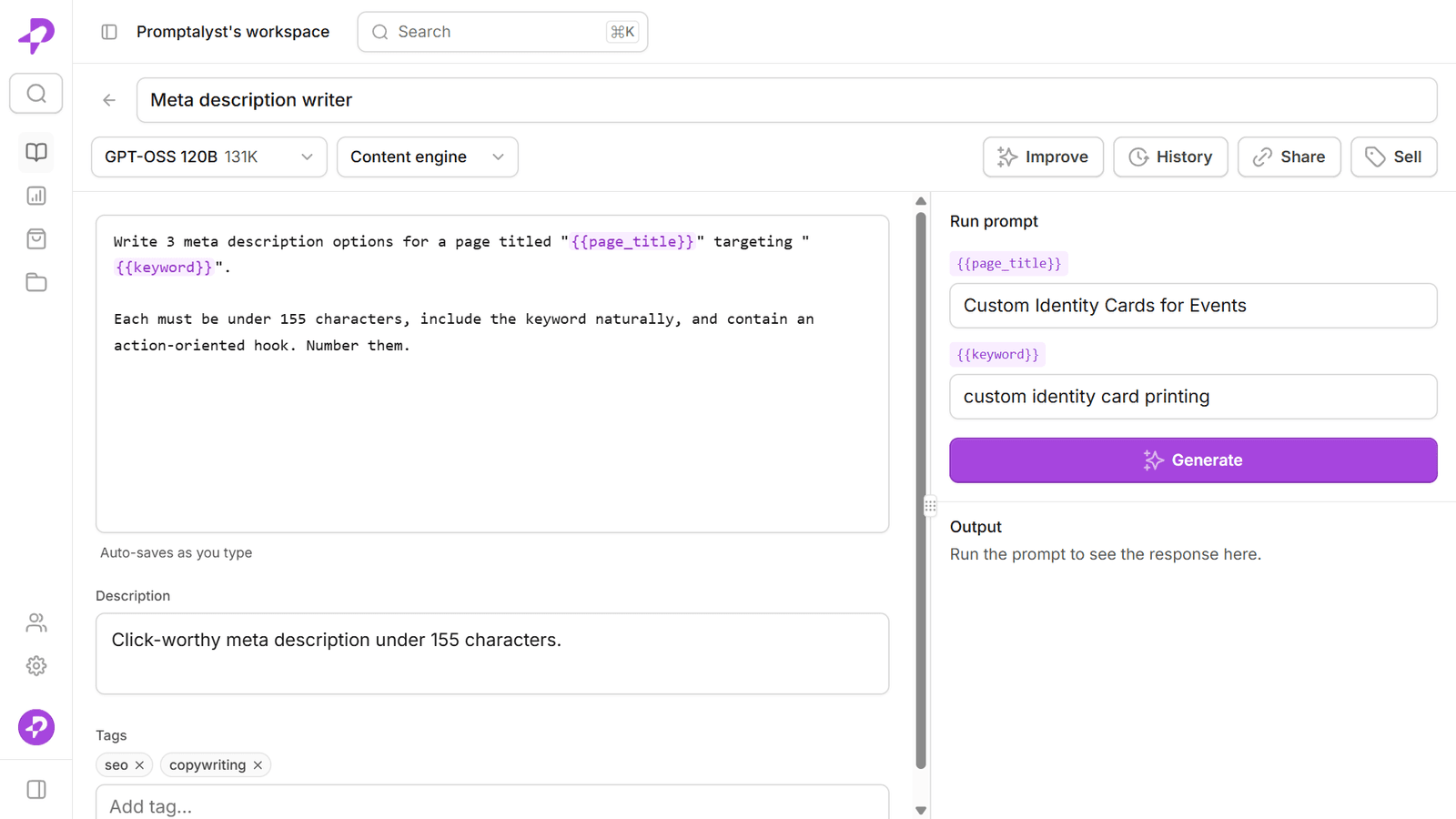
A prompt library stores the prompt as a reusable thing rather than a block of text, which lets it do what a doc can't:
- Variables. Write
{{brand}}and{{product}}once; fill them in as labelled fields at run time. The prompt text never gets edited, so it can't be edited wrong. - Versions. Every change is kept, so you can see what improved a prompt and roll back when a change made it worse.
- Sharing with roles. One approved version for the whole team, with control over who can edit it — rather than a private copy per person, quietly drifting apart.
- Running it in place. Fill the fields, run, get the output, without moving between tabs.
Where it breaks: it's another tool. If you use AI occasionally and keep five prompts, this is more structure than the problem deserves.
How to tell which one you need
Be honest about two questions.
Do parts of the prompt change each time you run it? If yes, you need variables, and a doc will keep costing you small errors. If the prompt is identical every time, a pin or an extension is fine.
Does anyone else need to run it? The moment a second person needs the same prompt, you need one version with roles — not two copies that drift. Sharing a ChatGPT conversation shares a conversation, not a prompt.
If both answers are no, stop here. A pinned chat is genuinely fine and you should not buy software to solve a problem you don't have.
A worked example
Here's the same prompt, stored two ways.
In a doc:
Write five Instagram captions for Northwind Coffee's new cold brew, aimed at office workers, in a warm and slightly dry voice.
To reuse it for a different client you edit three things inside the sentence, every time, and hope you caught all three.
In a prompt library:
Write five Instagram captions for
{{brand}}'s new{{product}}, aimed at{{audience}}, in a warm and slightly dry voice.
The three blanks become three labelled fields. The prompt itself is never touched, so it cannot be half-edited — and the next person to run it gets the version you approved, not the version they adapted.
Getting started
If you've decided you need more than a pinned chat, start small rather than migrating everything:
- Find the five prompts you actually reuse. Not the best ones — the most repeated ones.
- Rewrite the changing parts as named blanks:
{{brand}}, not "Northwind Coffee". - Put them somewhere your team can reach, with one owner per prompt.
- Only then add the rest.
Most teams find the useful library is far smaller than they expected — a dozen prompts carrying almost all the work.
Promptalyst is a prompt library built for exactly this: save a prompt, wrap the changing parts in {{variables}}, run it on ChatGPT, Claude or Gemini with your own API key, and share it with your team. The free plan holds 20 prompts and needs no card.
If you're weighing it against what you already have, we wrote an honest comparison in Promptalyst vs Notion and Google Docs, and a longer piece on what a prompt library is and why teams need one.